Datomic Console
29 October 2013
[Update: Watch the intro video.]
The Datomic Console is a graphical UI for exploring Datomic databases.

It supports exploring schema, building and executing queries, navigating entities, examining transaction history, and walking raw indexes. The Datomic Console is included in Datomic Pro, and is available as a separate download for Datomic Free users.
Exploring Schema
The upper left corner of the console displays a tree view of the attributes defined for the current database.

Query
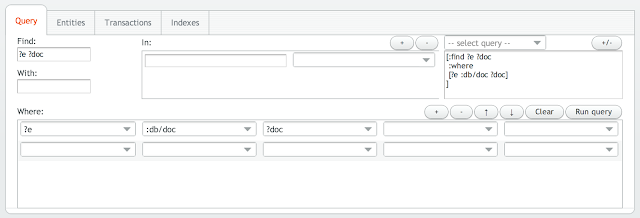
The Query tab provides two synchronized views of queries: a graphical builder, and the equivalent textual representation.
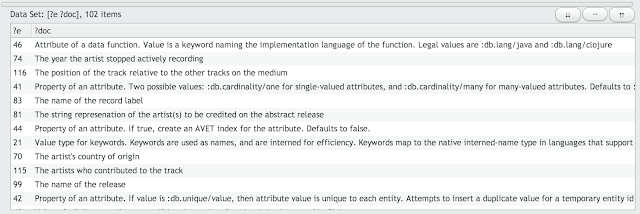
You can see the results of a query in the Dataset pane on the lower right.
Entities
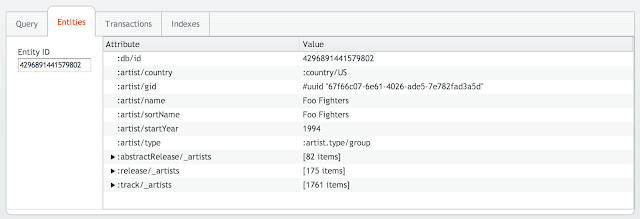
The Entities tab provides a tree view of an entity, plus the ability to drill in to related entities.
Transactions
The Transactions tab provides a graphical view of the history of your database at scales ranging from days down to seconds.
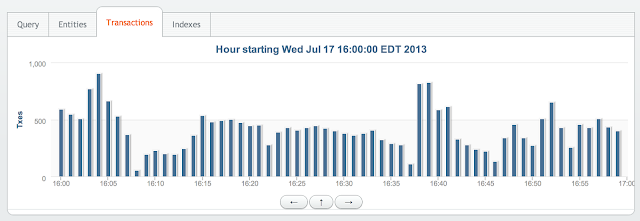
When you zoom in, the specific datoms in a transaction are displayed in the dataset pane.
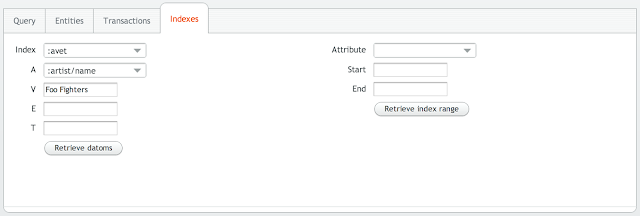
Indexes
The Indexes tab allows you to browse ranges within a Datomic index, displaying results in the dataset pane.
And More
This post only scratches the surface, see the full docs for more details. You can save arbitrary datasets, giving them a name for reuse in subsequent queries. And, of course, you can use Datomic’s time features to work with as-of, since, and historical views of your data.